Client builds · Account provisioning · 10 minutes
How to install WordPress — Build the Account First, the Site Second
Anyone can install WordPress in ten minutes; what separates a hosting business from a hobby is that the ninetieth account comes out identical to the first.
Straight answer first
Create the cPanel account from a WHM package before you install anything, because the package is the product you are selling — the quotas, the PHP version, the feature list and the price all live there. Installing WordPress into a hand-built account works once and becomes untraceable at scale.
Then run Softaculous into the correct document root, set credentials the client will not hand to the next freelancer, apply your standard first-hour settings and write the install into your own client record. The whole sequence is about ten minutes and the point of it is that it is the same ten minutes every time.
Written by the Hosting Seller staff · Checked 24 August 2026
Beginner
Level for your team
10 minutes
Time per build
5
Runbook stages
24/7
Escalation cover
Written for people provisioning sites for other people. The installer is the easy part and this page spends most of its attention on what surrounds it.
If you are doing this more than a handful of times, the standardisation is the deliverable. A package in WHM, a fixed set of first-hour settings, and a note in the client record turn a build into a repeatable unit of work.
The package is the product
In WHM you define packages: disk, bandwidth, mailbox counts, database counts, the feature list a client can see. Those packages are what you are actually selling, and every cPanel account you create should come from one. Overselling is switched on, so the totals you promise across packages can exceed the raw pool.
Build three or four and stop. A package per client is how a portfolio becomes unmanageable — you lose the ability to raise a limit across a tier, and every support conversation starts with working out what this particular account was given.
One install, done twenty times
Softaculous creates the database, places the files and writes the configuration in a single pass. The manual install has nothing left to offer except an understanding of what the installer is doing, which is worth having once and not worth repeating.
The field that costs people is the directory. Leave it empty to install at the root of the domain; fill it in and the client's site lives at theirdomain.com/wp, which is discovered later by somebody who did not do the install.
Credentials and the leaving freelancer
Every WordPress build you hand over will eventually be logged into by somebody you have never met. Set an admin username that is not admin, let the installer generate the password, and give the client their own account at the privilege level they actually need rather than the one they ask for.
Keep your own maintenance account separate from the client's. When a relationship ends, or a freelancer leaves, you want to be disabling one login rather than working out which of five shared accounts belonged to whom.
The first hour, standardised
Timezone, permalinks set to Post name, sample post and page deleted, site title checked, discussion settings decided, and the caching plugin configured. Five minutes of housekeeping that every later job quietly depends on — and every one of them is a support ticket if skipped.
Write the list down and follow it. The reason to standardise is not tidiness; it is that when something is wrong on account forty-one, you can be certain about what was and was not done to it.
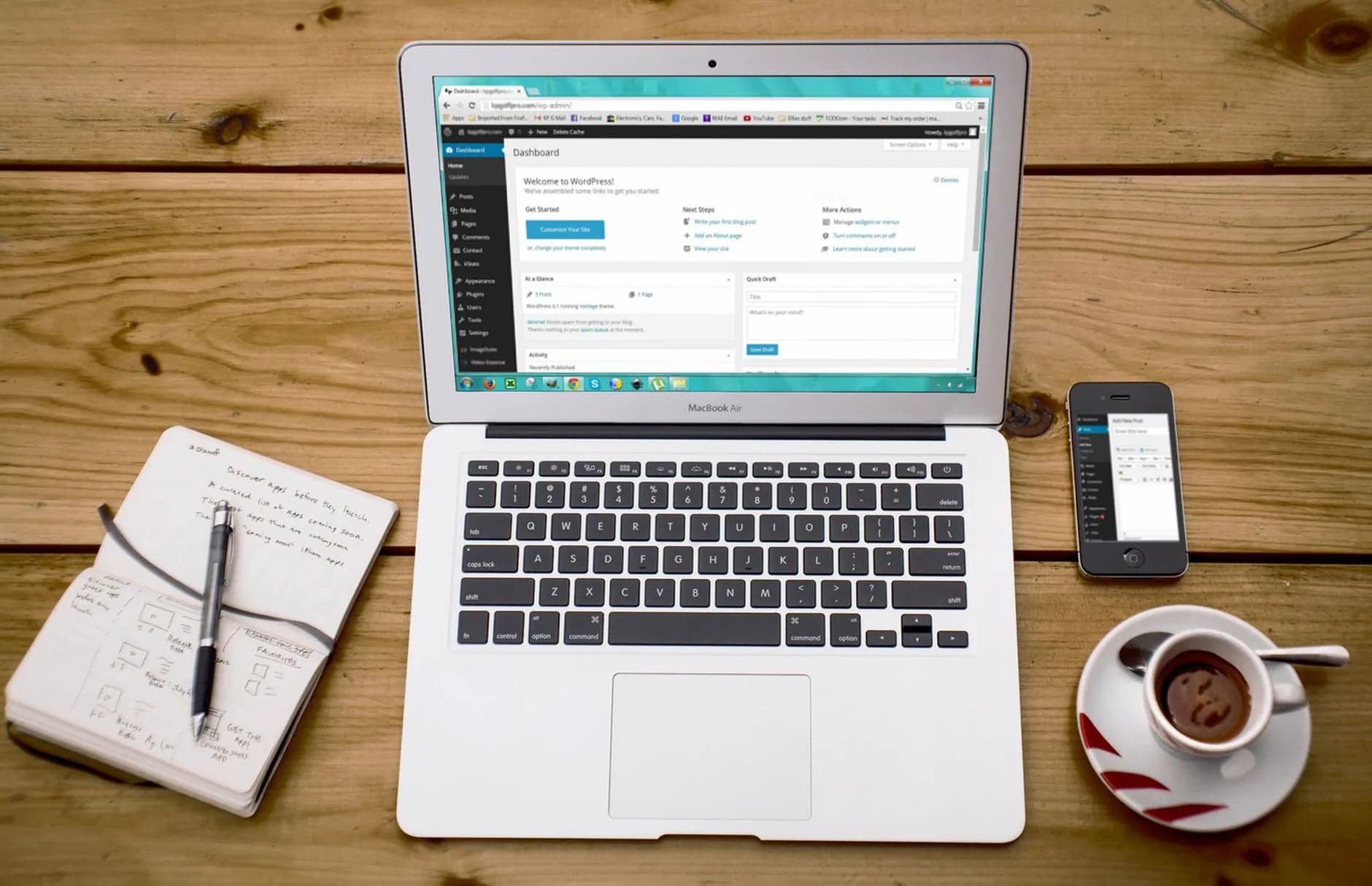
What provisioning looks like on the platform
WHM for packages and account creation, cPanel for the client, Softaculous for one-click installs of WordPress and 400+ other applications, and the WordPress Toolkit with updates applied for you across accounts.
cPanel and WHM licensing sits inside the plan price whatever your account count, and reseller tiers start at $14.99/mo plus $0.40 for each active client account with no setup fee.
- WHM packages defining what you actually sell
- One-click installs for WordPress and 400+ other applications
- WordPress Toolkit, with updates applied across accounts
- cPanel and WHM licensing inside the plan price
Why Hosting Seller
On every plan, as standard
Provisioning before installing
Accounts come from WHM packages, so a tier can be changed once rather than account by account.
Identical every time
A fixed sequence means the ninetieth build is as predictable as the first, whoever runs it.
Credentials that survive people
Separate maintenance and client logins, so a departure is one account disabled rather than a forensic exercise.
The directory field caught
The one box that quietly buries a client site at /wp is called out before you reach it.
Updates handled above the site
WordPress Toolkit applies updates across accounts, so maintenance is not thirty separate logins.
No setup fee to absorb
Nothing is added at signup, so opening an account for a trial client costs you nothing extra.
First Steps
From choosing to live
- 1
Create the account from a WHM package
Pick the package that matches what you sold, not a one-off configuration. Disk, bandwidth, mailboxes and the feature list come from there, and overselling means the totals across packages can exceed the raw pool.
- 2
Run Softaculous into the right document root
Install at the root of the domain by leaving the directory box empty, unless the client genuinely wants the site at /blog. The installer creates the database, places the files and writes the configuration in one pass.
- 3
Set credentials that survive a handover
An admin username that is not admin, a generated password, and a separate maintenance account for your team. Give the client the privilege level they need rather than the one they ask for, and record who has what.
- 4
Apply your standard first-hour settings
Timezone, permalinks on Post name, sample content deleted, site title, discussion settings, caching plugin configured. Follow the written list rather than your memory — that is the entire point of having one.
- 5
Write the build into the client record
Package used, install path, admin accounts issued, plugins installed, date. Two minutes now is the difference between diagnosing account forty-one in ten minutes and reverse-engineering it in an afternoon.
In the Box
Packed with every plan
- WHM packages defining what you actually sell
- One-click installs for WordPress and 400+ other applications
- WordPress Toolkit, with updates applied across client accounts
- cPanel and WHM licensing inside the plan price, whatever the account count
- Overselling switched on from day one across every tier
- Daily backups, with restores you run yourself from the panel
- Free SSL on every account you create, reissued before it lapses
- A 99.9% uptime target, watched by monitoring day and night
- Nothing added at setup — no joining fee, ever
- Upgrades applied to the account in place, with no move between plans
Across the Counter
Things people ask us all the time
Should I build packages in WHM or configure each client account by hand?
Packages, always, even at five clients. A package lets you change a limit across a whole tier in one action and tells you instantly what any account was given. Hand-built accounts work until the day you need to raise disk for everyone on your middle tier.
Which plugins belong on a client build by default?
Far fewer than the listicles suggest. LiteSpeed Cache, which comes bundled with our WordPress hosting, an SEO plugin and a forms plugin cover most sites. Every extra plugin is something you have contracted to maintain, so add on need rather than on principle.
How do I keep a client's site updated across thirty accounts?
WordPress Toolkit applies updates across accounts rather than making you log into each one, and it is included. Set the policy per account — core automatic, plugins on a weekly slot — and keep the exceptions written down where your team can see them.
Who is behind the platform I am reselling?
Hosting Seller is a trading name of IGI Security Services Ltd, a company registered in England and Wales with terms published under English law. When your own brand sits on top of somebody else's infrastructure, knowing which company that is belongs in your due diligence.
Read next
Reseller Hosting
White-label hosting with WHM — sell under your own name, set your own prices, bill monthly.
cPanel Reseller Hosting
The panel the trade already knows, sized for resellers, with WHM in the box.
Moving your site to another host? Start with this checklist.
A step-by-step order of work for a move your visitors never spot: which files to copy first, how to carry email across without losing one message, the right moment to repoint DNS, and the two mistakes behind nearly every hour of downtime people ring us about.
Open WHM and start provisioning.
cPanel and WHM from $14.99/mo plus $0.40 per active client account, with licensing in the price, overselling on and no setup fee.
See Reseller Hosting plans